Evidence-based guide
How to Connect ChatGPT and Other AI Agents to Kiomora
Connect ChatGPT, Codex, Claude Code, Gemini CLI, OpenCode, Hermes Agent, Grok, or another compatible MCP host to Kiomora.
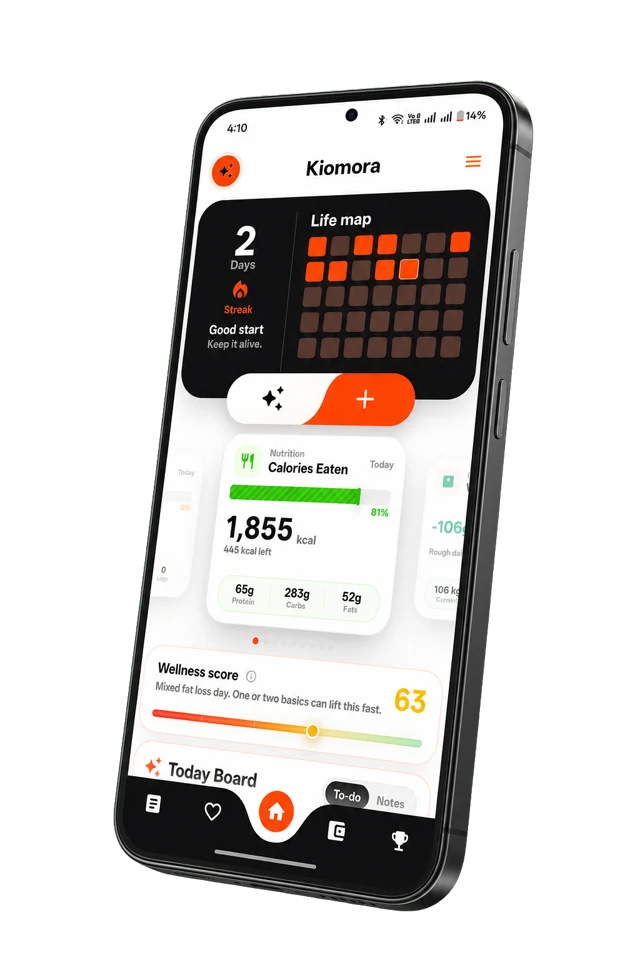
Kiomora private connections
Your record. Your agent.
Connect a compatible AI client to the Kiomora data and tools you authorize.
Explore KiomoraKiomora’s private agent connection lets you use supported life data from a compatible AI client without moving that record into a new app. You can ask an agent to find saved entries, create a new log, correct a specific record, or retrieve weekly and monthly report context.
This feature is for Kiomora Plus users. The public setup page is kiomora.com/connections, and the remote MCP endpoint is https://mcp.kiomora.com/mcp.
Before you connect
- Confirm that Kiomora Plus is active on the same Kiomora account you use in the mobile app.
- Update your AI client and confirm that its plan or workspace supports remote MCP connections.
- Connect only an agent, account, and device you trust.
- Read the authorization screen before approving access.
Connect Codex
In a terminal with the Codex CLI installed, add the remote server and begin authorization:
codex mcp add kiomora --url https://mcp.kiomora.com/mcp
codex mcp login kiomora
Complete the Kiomora sign-in and approval in the browser window. The connection should then appear on the Kiomora Connections page.
Connect Claude Code
Add Kiomora as a user-scoped remote MCP server:
claude mcp add --transport http --scope user kiomora https://mcp.kiomora.com/mcpOpen Claude Code and run /mcp to begin or inspect the connection. Finish the Kiomora authorization in your browser.
Connect ChatGPT
ChatGPT’s custom MCP controls and write-capable tool access vary by plan, workspace type, platform, and administrator settings. Where custom apps and developer mode are available on ChatGPT web, open Settings, then Apps, choose Create app, and enter https://mcp.kiomora.com/mcp. Scan the tools and complete Kiomora authorization.
If the relevant control is missing, check the current official OpenAI MCP availability guide. A Kiomora connection cannot unlock a host feature that the external provider has not enabled for your account.
Connect Gemini CLI
Add Kiomora as a user-scoped HTTP MCP server:
gemini mcp add kiomora https://mcp.kiomora.com/mcp --transport http --scope userIf authorization does not start automatically, run /mcp auth kiomora inside Gemini CLI. Use /mcp list to verify the connection. See the official Gemini CLI MCP reference for current OAuth and transport behavior.
Connect OpenCode
Add the following remote server to opencode.json:
{
  "$schema": "https://opencode.ai/config.json",
  "mcp": {
    "kiomora": {
      "type": "remote",
      "url": "https://mcp.kiomora.com/mcp",
      "enabled": true
    }
  }
}
OpenCode can detect OAuth automatically. Run opencode mcp auth kiomora to begin the flow manually or opencode mcp list to inspect status. See the official OpenCode MCP guide.
Connect Hermes Agent
Register Kiomora as an OAuth-enabled remote MCP server:
hermes mcp add kiomora --url https://mcp.kiomora.com/mcp --auth oauthIf needed, run hermes mcp login kiomora, then use hermes mcp list to inspect the connection. The current command options are documented in the official Hermes Agent CLI reference.
Connect Grok
Open grok.com/connectors, choose New Connector, select Custom, and enter https://mcp.kiomora.com/mcp. Complete Kiomora authentication and enable the connector in a conversation.
Business and Enterprise workspaces may require a team administrator to add the connector. Check the official Grok connector guide for current availability.
Test the connection
Begin with a narrow read request. Then try a small write and verify it in the Kiomora mobile app:
- “Use Kiomora to list what I logged on June 26.”
- “Use Kiomora to show my food logs from the last seven days.”
- “Log two mangoes in Kiomora for today.”
- “Show my latest Kiomora weekly report.”
Dates and time zones matter. If a result seems to be on the wrong day, include the date and local time explicitly, then verify the saved record in the app.
What the connection can access
An approved client can use the supported tools shown on the authorization screen. Current tools can read user-owned life logs, create or correct supported logs, read weekly and monthly reports, and read relevant goals, units, and time-zone context. A specifically identified record can be deleted only with confirmation; bulk deletion is not provided through MCP.
MCP retrieval is also not the same as a complete account export. It can return supported records, often in pages, but does not promise every account field, file, system record, or attachment in a single archive.
Disconnect or troubleshoot
- Open Kiomora Connections.
- Confirm the expected agent appears under Connected agents.
- If Plus is active but access is denied, refresh entitlement status and reconnect the affected client.
- Use Disconnect to revoke a connection you no longer recognize or use.
For a visual, continuously updated version of every setup path, open the Kiomora Connections hub. For Kiomora-specific trouble, visit the Support page.
Common questions
Practical answers before you begin
- What do I need before connecting an AI agent?
- You need a Kiomora account with an active Kiomora Plus entitlement and a compatible MCP host. Host availability can depend on its plan, app version, and workspace settings.
- Does the agent get my Kiomora password?
- No. Kiomora uses an authorization flow. The compatible client receives revocable tokens and approved tool access, not your Kiomora or Google password.
- Can I disconnect an agent later?
- Yes. Open the Kiomora Connections page and revoke that connection. Losing Kiomora Plus access also prevents the connection from using Kiomora tools.
Don't forget to try Kiomora
See more thanone detail
Keep the useful parts of each day in one record you can return to.
Explore Kiomora